




- Published on: 2026-08-14 14:42:00
How to Log In to MetaTrader 5 (Desktop, Web, Mobile)
Universal Multi-Platform Trading Accessibility
Modern financial trading requires seamless access across devices. MetaTrader 5 provides a flexible, cross-platform experience that lets you manage positions, conduct technical analysis, and monitor portfolios from almost anywhere. Whether working from a multi-monitor desktop station, checking positions via a browser, or managing orders on a smartphone, connecting to your account requires the same basic access credentials.
Understanding how to navigate the login process across desktop, web, and mobile environments ensures you stay connected to the markets whenever opportunities arise.
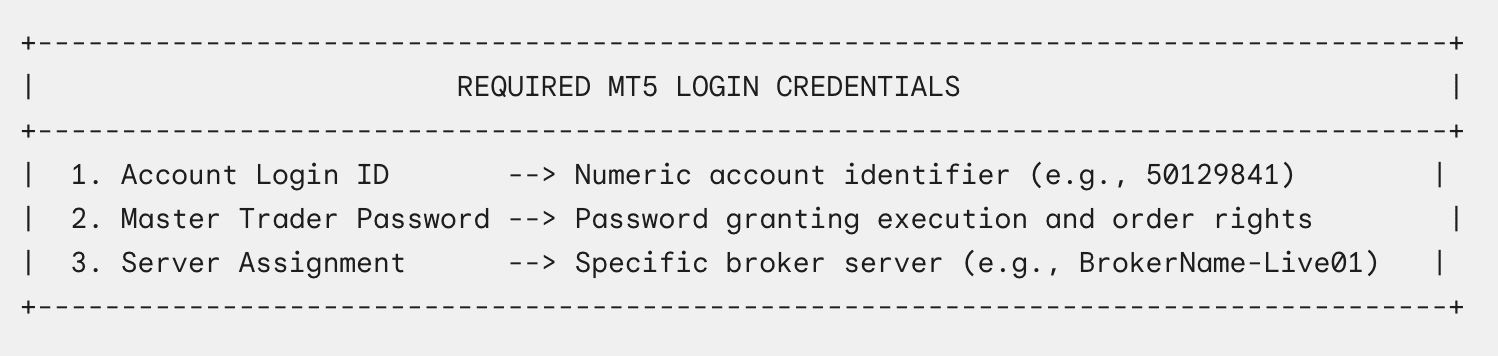
Essential Login Credentials Overview
Before connecting to any MT5 terminal, make sure you have the account credentials provided in your broker welcome email or client portal:
Method 1: Logging In via the Desktop Application (PC/Mac)
- Launch the MetaTrader 5 platform on your computer.
- Select File from the top navigation bar and click Login to Trade Account.
- In the login pop-up, enter your numeric Account Login ID and Master Password.
- Open the Server drop-down menu and select your assigned broker server. If your server is not listed, type its full name manually into the field.
- Check Save password if you want the application to log in automatically on future launches, then click OK.
To confirm your connection, check the bottom-right corner of the terminal window. A green and blue signal bar accompanied by network transfer metrics (such as 132/15 kb) confirms a successful connection. Red bars or error messages indicate an authorization or network connection issue.
Method 2: Accessing MT5 WebTerminal from Any Browser
The MT5 WebTerminal offers full trading functionality directly inside web browsers without requiring software downloads or local installations, making it ideal for temporary or restricted workstations.
-
Open your browser and navigate to your broker’s official MT5 WebTerminal portal.
-
When the login window appears, enter your numeric Account Login ID and Password.
-
Select MetaTrader 5 as your target platform version.
-
Pick your assigned server name from the server drop-down menu.
-
Click Connect to Account to open the web-based charting and order interface.
Method 3: Signing In via Mobile Applications (iOS and Android)
The MetaTrader 5 mobile app provides full account management capabilities for active traders on the move.
Connecting on iOS Devices (iPhone and iPad)
-
Download and launch MetaTrader 5 from the Apple App Store.
-
Tap the Settings icon located in the bottom-right menu bar, then tap New Account.
-
Enter your broker’s name in the search field and select it from the results.
-
Select your assigned server, then enter your Account Login ID and Password.
-
Tap Sign In to load your trading workspace and account history.
Connecting on Android Devices
-
Download and launch MetaTrader 5 from the Google Play Store.
-
Tap the main menu icon (three horizontal lines) in the top-left corner and select Manage Accounts.
-
Tap the + (Plus) button at the top right of the screen.
-
Type your broker's name into the search box and select it from the results.
-
Enter your Login ID, Password, and select the correct Server name from the drop-down list.
-
Tap Log In at the bottom of the screen to connect.
Troubleshooting Common MT5 Authorization Errors
Even experienced traders occasionally encounter connection issues. The table below lists common error messages and their solutions:
Frequently Asked Questions
What is the difference between a Master Password and an Investor Password?
The Master Password grants full trading access, allowing you to open, modify, and close positions. The Investor Password provides read-only access, letting viewers monitor live trades and account performance without the ability to execute orders.
Why is my assigned broker server missing from the server drop-down menu?
If your server name does not appear in the menu, go to File > Open an Account, enter your broker's name in the search box, and click Find your company. MT5 will scan the network and add all associated broker servers to your local server list.


